
Worldline Model Context Protocol (MCP) Server
What is Worldline's MCP Server?
Worldline's MCP Server serves as a standardized communication layer that bridges AI models, such as LLMs and autonomous agents, with Worldline's payment and commerce functionalities. Think of it as your secure gateway, empowering AI agents to interact seamlessly with our platform and perform real-world commercial actions.
Our MCP Server provides a set of tools that AI agents can use to interact with our payment APIs and perform specific transaction actions, like creating hosted checkouts or refunds. It helps you integrate with us faster, and allows AI powered applications to access our payment functionalities through natural language interactions.
How does it work?
Worldline's MCP Server acts as a bridge, standardizing how AI agents communicate with Worldline's payment services. This simplifies integration while ensuring secure and efficient transaction handling.
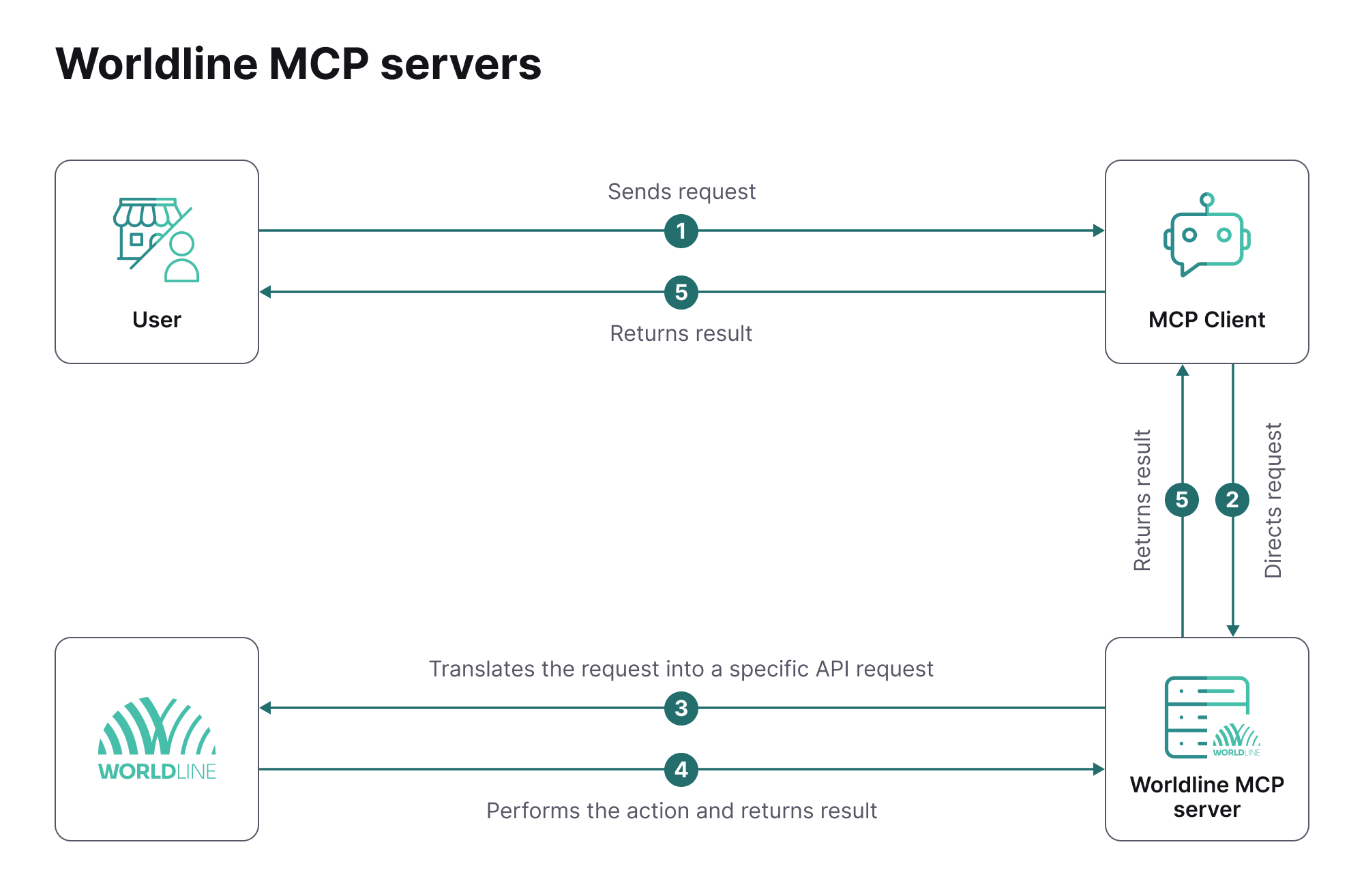
Here’s a simplified breakdown of the process:
- The user (you or your consumer) sends their request in natural language to an MCP client – for example, "Show me available payment products" or “Refund transaction ID 1234”.
- The MCP client directs these requests to one of the Worldline MCP Servers - Commerce MCP Server for consumer-facing requests or Operations MCP Server for merchant or internal requests.
- The Worldline MCP Server receives the request, interprets the intent, and translates the request into a corresponding specific API request, like: GetPaymentProduct or createRefund
- The API call is made to Worldline Global Collect platform to perform the action you have given in the API request.
- The MCP client receives the result of the action returned via the MCP server, interprets the result and presents it back to the consumer conversationally.
How to use the MCP Servers?
Worldline provides specialized MCP servers that integrate AI capabilities into your commerce operations. These servers enable your applications to securely interact with Worldline's payment platform via the Model Context Protocol (MCP).
Commerce MCP Server
This MCP Server is designed for your consumer-facing applications, such as chatbots, virtual assistants, and AI shopping agents. It allows your AI-powered applications to handle interactions with consumers during checkouts and other payment requests. This server enables you to expose Worldline's payment functionalities to AI agents. Your LLM client can receive natural language instructions from consumers to perform payment-related actions. For example:
- Initiate payment sessions: Prompt: "Proceed to payment" This action utilizes the CreateHostedCheckout API to generate a secure link for consumer payment.
- Inquire about payment options: Prompt: "How can I pay?" This instruction enables your AI to call GetPaymentProduct to retrieve available payment methods.
See example below of using commerce MCP server to book flight tickets:
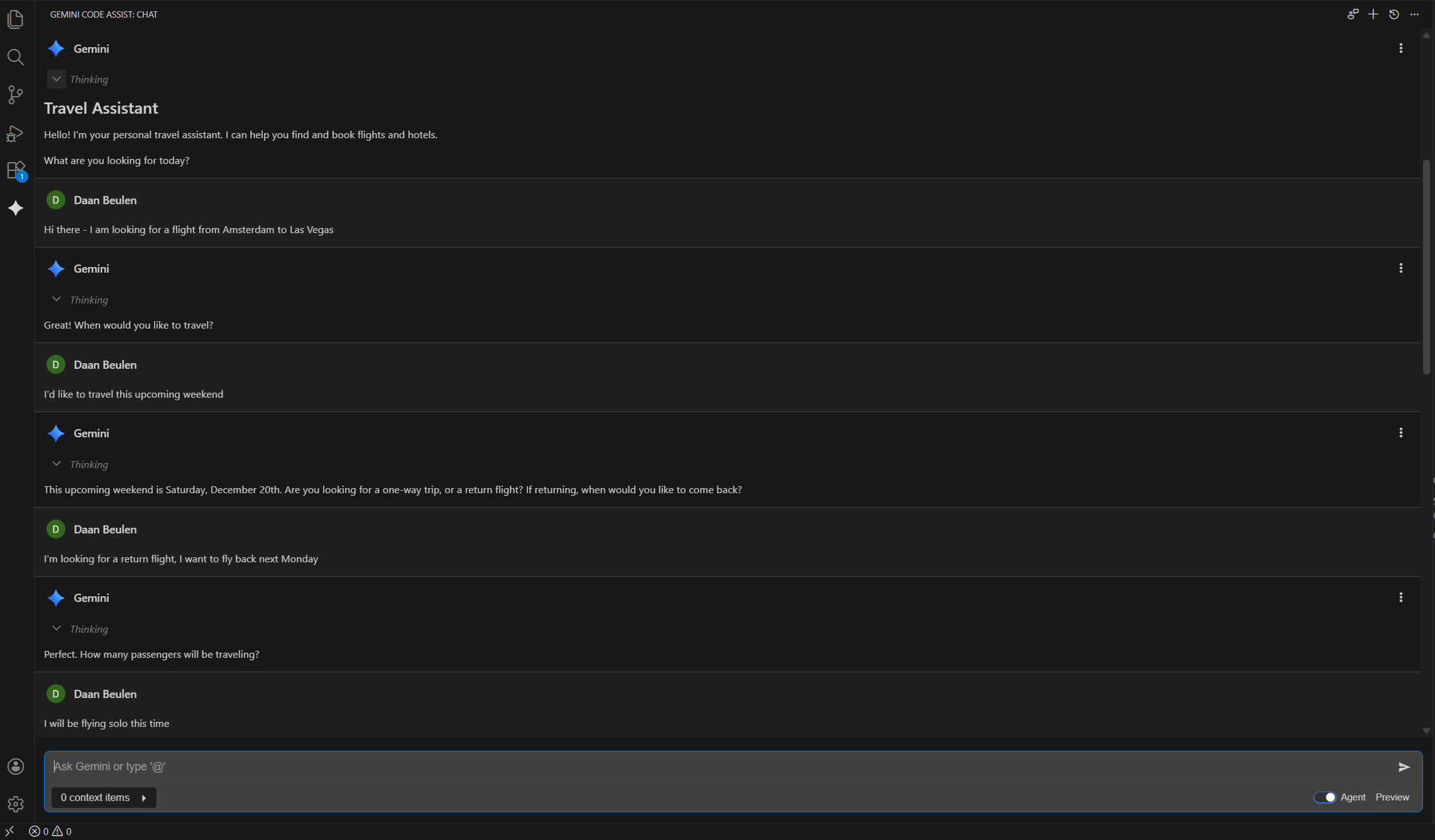
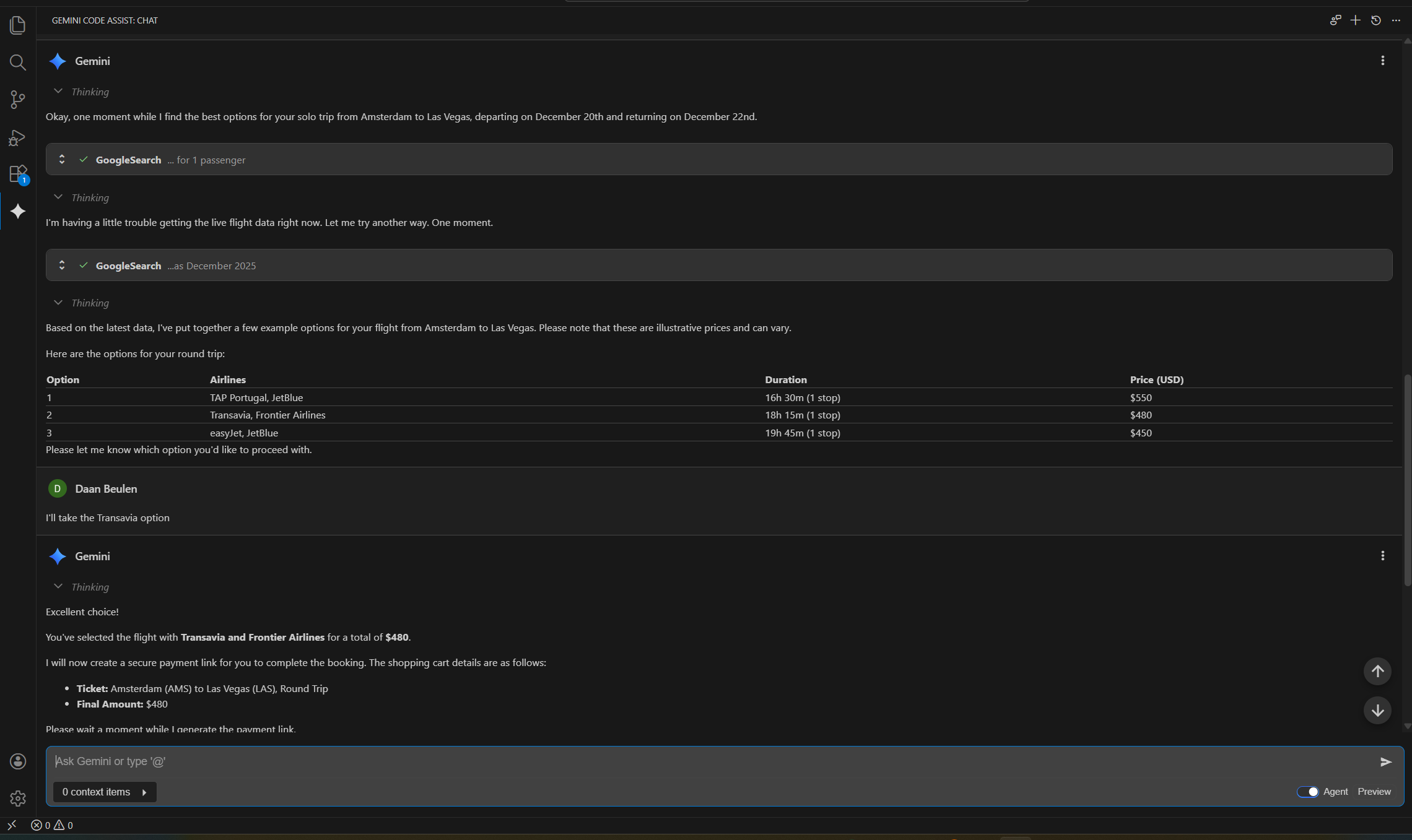
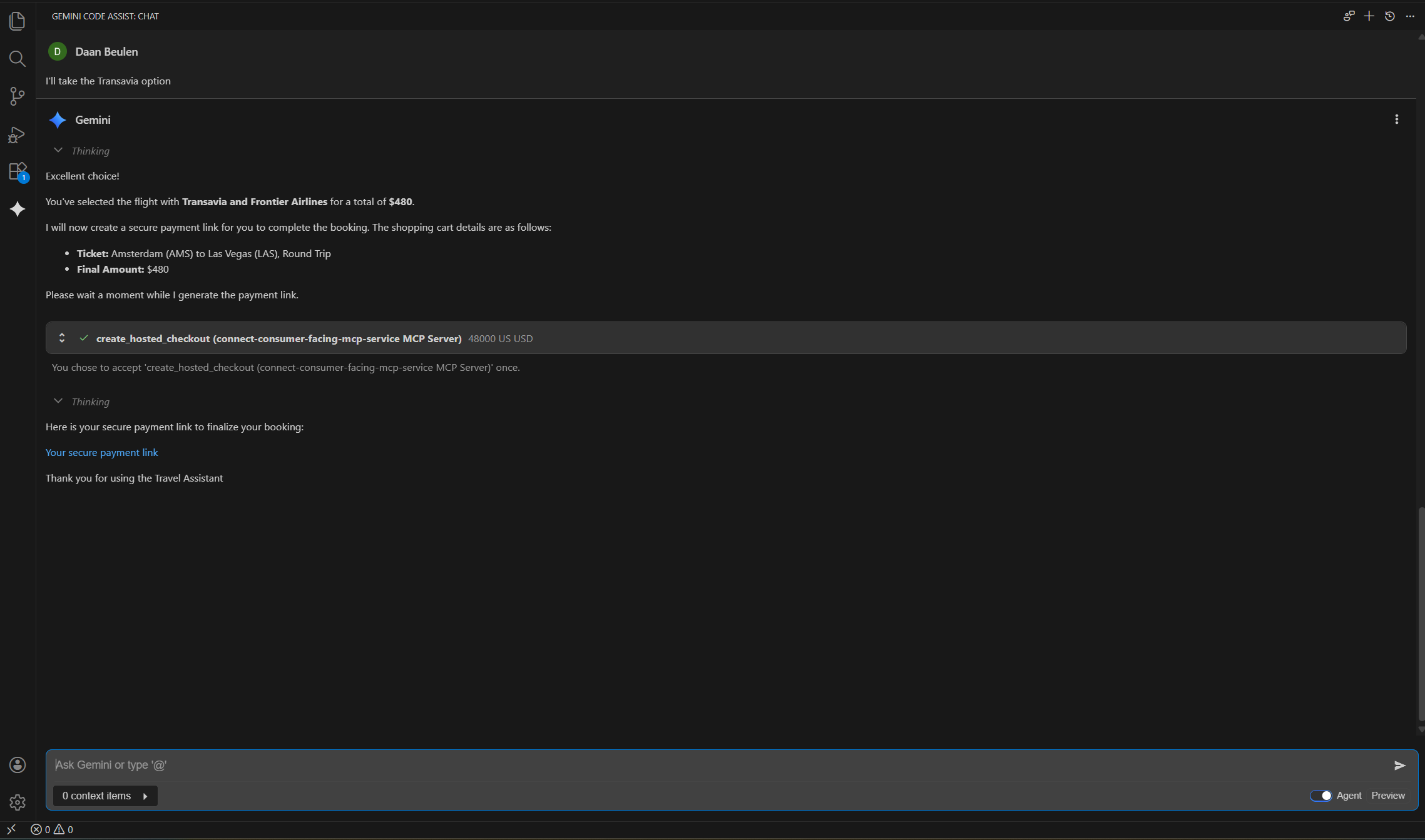
Currently, the commerce MCP server supports initiating secure hosted checkout sessions through payment links, allowing you to accept payments when offering your own shopping agent. We plan to expand its capabilities to handle additional agentic commerce payment use cases.
Operations MCP Server
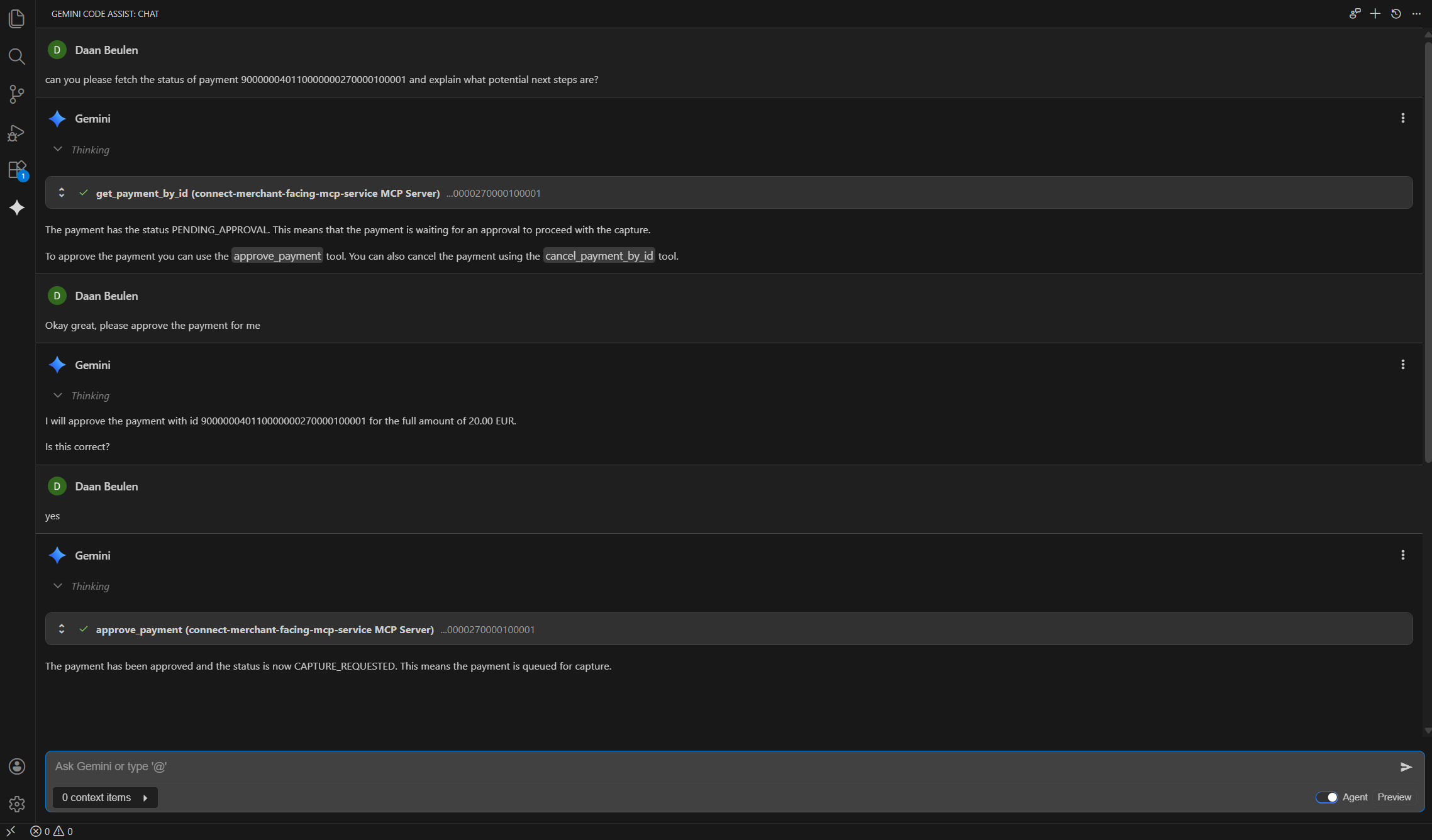
This MCP Server is suitable for your internal-facing applications and backend systems. It provides a set of helpful tools to assist you in managing operations that occur after a transaction has been successfully paid. This server allows your internal systems or AI agents to securely and efficiently manage post-transaction processes using Worldline's established APIs. For example:
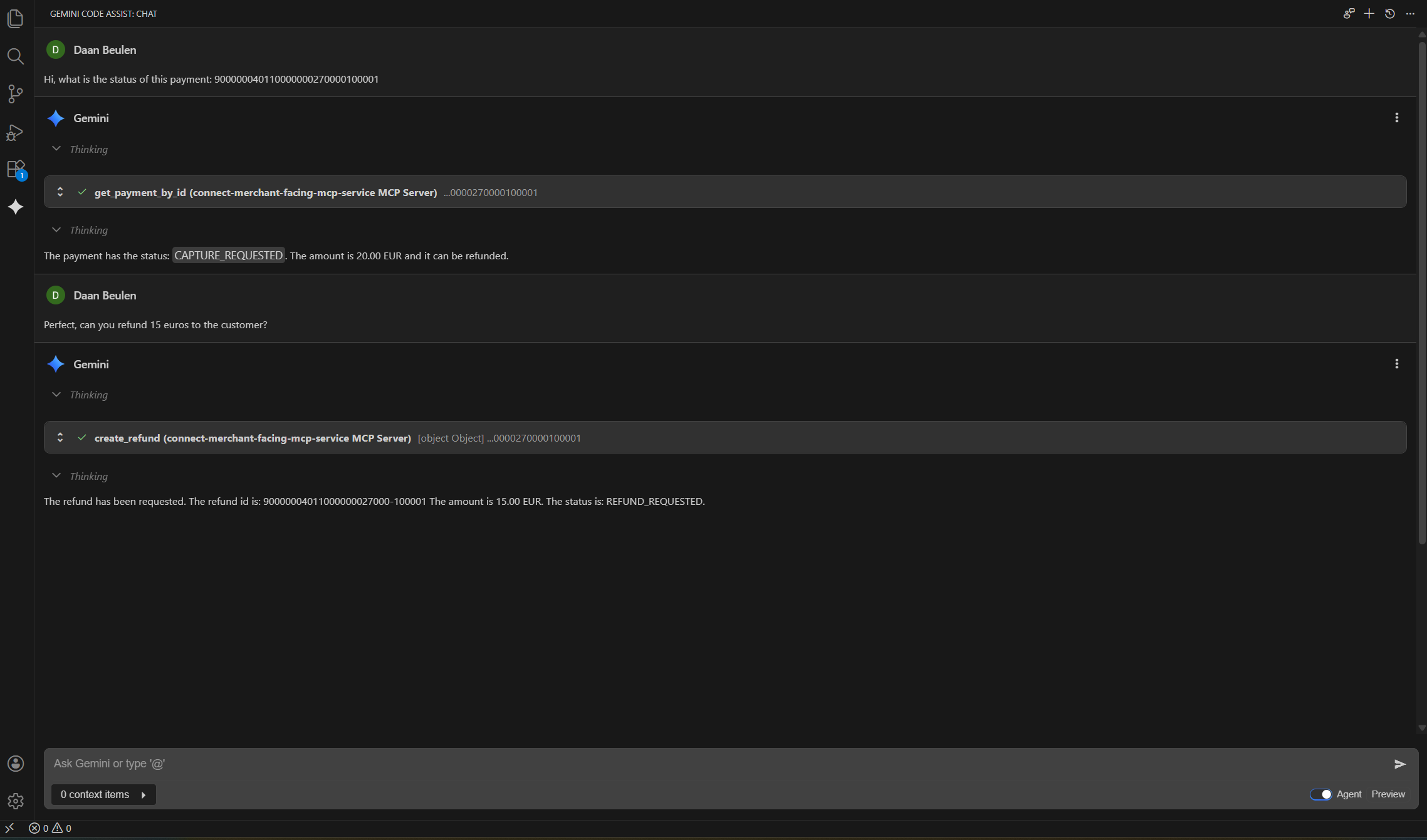
- Manage refunds: Prompt: "Initiate a full refund for payment ID 1234" This action utilizes the CreateRefund API.
- Manage disputes: Prompt: "What is the current status of dispute ID 1234 ?" This action utilizes the GetDispute API to retrieve dispute status and detail.
See example below of using the operations MCP server to request a refund:
Get started
To use the Worldline MCP Servers, OAuth2 authentication is required. We recommend creating a dedicated OAuth 2.0 client specifically for connecting to the MCP Servers, ensuring that you limit the access of this OAuth2 client to a specific merchant account and only grant it access to the scopes that are required for the underlying API calls on Connect.
To obtain the set up instructions, please contact your Account Manager.
Integration
The MCP clients need to be integrated in an MCP client. Some well known MCP clients are listed below, but any MCP client that supports connecting to an MCP server through a local process should work.
- Gemini
- Claude Desktop / Claude AI
- ChatGPT desktop app
In order to ease the integration with the MCP Server we recommend using a small utility tool, mcp-proxy, that can be used to connect to the server. This tool will take care of managing the authentication for you, all you need to do is configure your client id and client secret.
- Install mcp-proxy, this is an open source tool that helps connecting to remote MCP servers. run "pip install mcp-proxy" (note: They still need to release the version with OAuth2 client credentials grant support)
- Find the settings.json file for your client. Typically, this file can be found in the local user folder on your machine within a specific folder for the client. For the most well-known clients, you can check the locations below.
- Open the settings.json file and configure the following:
{
    "mcpServers": {
        "connect-merchant-facing-mcp-service": {
            "command": "mcp-proxy",
            "args": [
                "--transport",
                "streamablehttp",
                "--client-id",
                "YOUR_CLIENT_ID_HERE",
                "--client-secret",
                "YOUR_CLIENT_SECRET_HERE",
                "--token-url",
                "https://auth.preprod.connect.worldline-solutions.com/auth/realms/connect_api/protocol/openid-connect/token",
                "https://mcp.preprod.connect.worldline-solutions.com/merchant"
            ]
        },
        "connect-consumer-facing-mcp-service": {
            "command": "mcp-proxy",
            "args": [
                "--transport",
                "streamablehttp",
                 "--client-id",
                "YOUR_CLIENT_ID_HERE",
                "--client-secret",
                "YOUR_CLIENT_SECRET_HERE",
                "--token-url",
                "https://auth.preprod.connect.worldline-solutions.com/auth/realms/connect_api/protocol/openid-connect/token",
                "https://mcp.preprod.connect.worldline-solutions.com/consumer"
            ]
        }
    }
}
After adding the above, save the file and open your client. You should be able to see the tools in the client.
Tools
Currently, interactions with the following APIs are supported.
Commerce MCP server
| APIs | Description |
|---|---|
| CreateHostedCheckout | Instantly generates a secure link for consumer to pay. |
| GetHostedCheckout | Retrieves the status and details of a hosted checkout session. |
| GetPaymentProduct | Discovers available payment methods for a given region or transaction. |
| GetPayment | Retrieves the status and details of a payment transaction. |
Operations MCP server
| APIs | Description |
|---|---|
| CreateRefund | Initiate a refund for a completed transaction. |
| GetRefund | Retrieve the status and details of a refund request. |
| CreateDispute | Initiate a dispute process for a transaction. |
| GetDispute | Retrieve details about existing disputes or chargebacks. |
| SubmitDispute | Submit evidence or responses for a dispute. |
| ApprovePayment | Authorize or confirm a payment that may require internal approval before funds are captured. |
| CapturePayment | Finalize a payment by capturing funds after authorization. |