
Additional security
Worldline sends webhook notifications to your endpoint when payment events occur. You need to verify that these requests are authentic and come from Worldline, not from an unauthorized source. If you want to add additional security to validate the webhooks are sent by us, you can secure your webhooks by choosing an approach that best fits your deployment environment and network requirements. You can implement one approach or combine both for added validation.
-
Application-level security: Custom headers - You can add a secret HTTP header to each webhook request for authentication. Your endpoint validates the header against your configured value. This approach works well when you deploy in cloud environments where IP addresses change frequently and firewall reconfiguration is impractical.
- Network-level security: DNS-based whitelisting - Configure your firewall to allow requests from Worldline's DNS domain. Instead of maintaining a static IP whitelist, the domain automatically resolves to current IP addresses. This means your firewall rules remain valid even when our infrastructure changes. Use this approach when you deploy on-premises and manage your own firewall.
You can implement both methods simultaneously. Combining application-level and network-level security provides multiple validation layers for webhook requests.
Key benefits
- Simple setup in the Configuration Center
- Live within 10 minutes (no code changes needed
- Ideal for cloud-native deployments
- Application-level security
- Automatic IP updates (no manual maintenance)
- Network-level control
- Perfect for on-premises firewalls
- Set-and-forget deployment
Which approach should you choose?
You can choose a security approach based on your deployment environment and security requirements. The comparison table below shows which approach is suitable for cloud, on-premises, and hybrid deployments.
| Scenario | Recommended | Reason |
|---|---|---|
| Cloud-native (AWS, Azure, GCP) | Custom Headers or DNS-based | Both avoid static IP constraints |
| On-premises with your own firewall | DNS-based Whitelisting | Network-level control, simpler |
| You want maximum security | Both approaches | Two protection layers (application + firewall) |
| Using managed cloud services (Lambda, Cloud Functions) | Custom Headers | More flexible without traditional servers |
| Can only modify firewall rules (can't change application code) | DNS-based Whitelisting | No code changes needed |
| Need fast deployment? | Custom Headers | Faster than server configuration |
| Maximum reliability required | Both approaches | Redundant validation layers |
Integration of custom headers
Overview
- Header name must include the X- prefix.
- Maximum header length is 256 characters.
- Allowed characters: a-z, A-Z, 0-9, underscore (_), colon (:), semicolon (;), period (.), comma (,), slash (/), backslash (), quotes ("), question mark (?), exclamation mark (!), brackets ([ ]), parentheses ( ), @ symbol, angle brackets (< >), hyphen (-), plus (+), asterisk (*), hash (#), dollar sign ($), ampersand (&), backtick (`), pipe (|), tilde (~), caret (^), percent (%).
- You need to configure the header in Integration Dashboards.
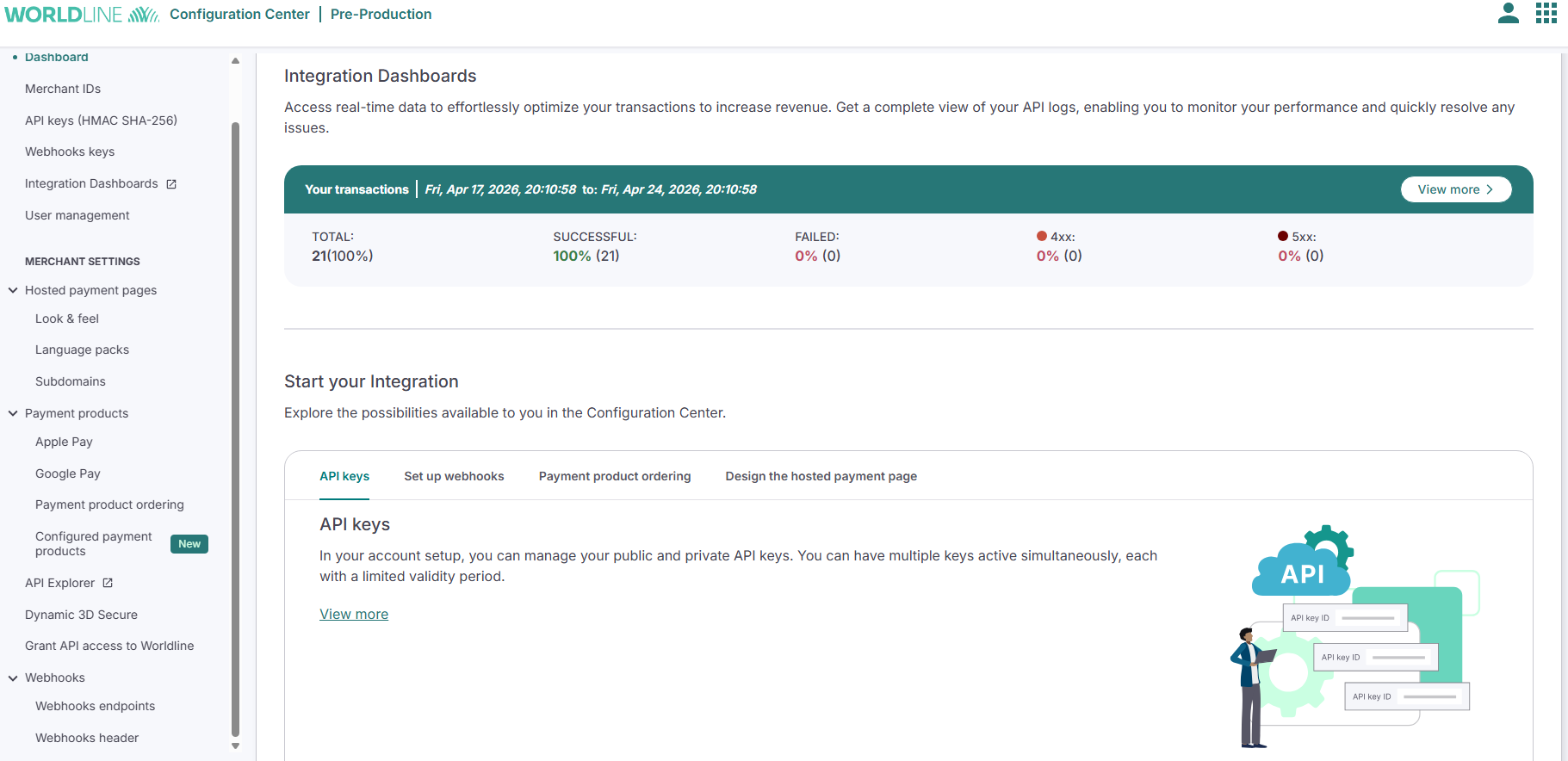
- Access Integration Dashboards and go to "webhooks header" configuration on the left menu.
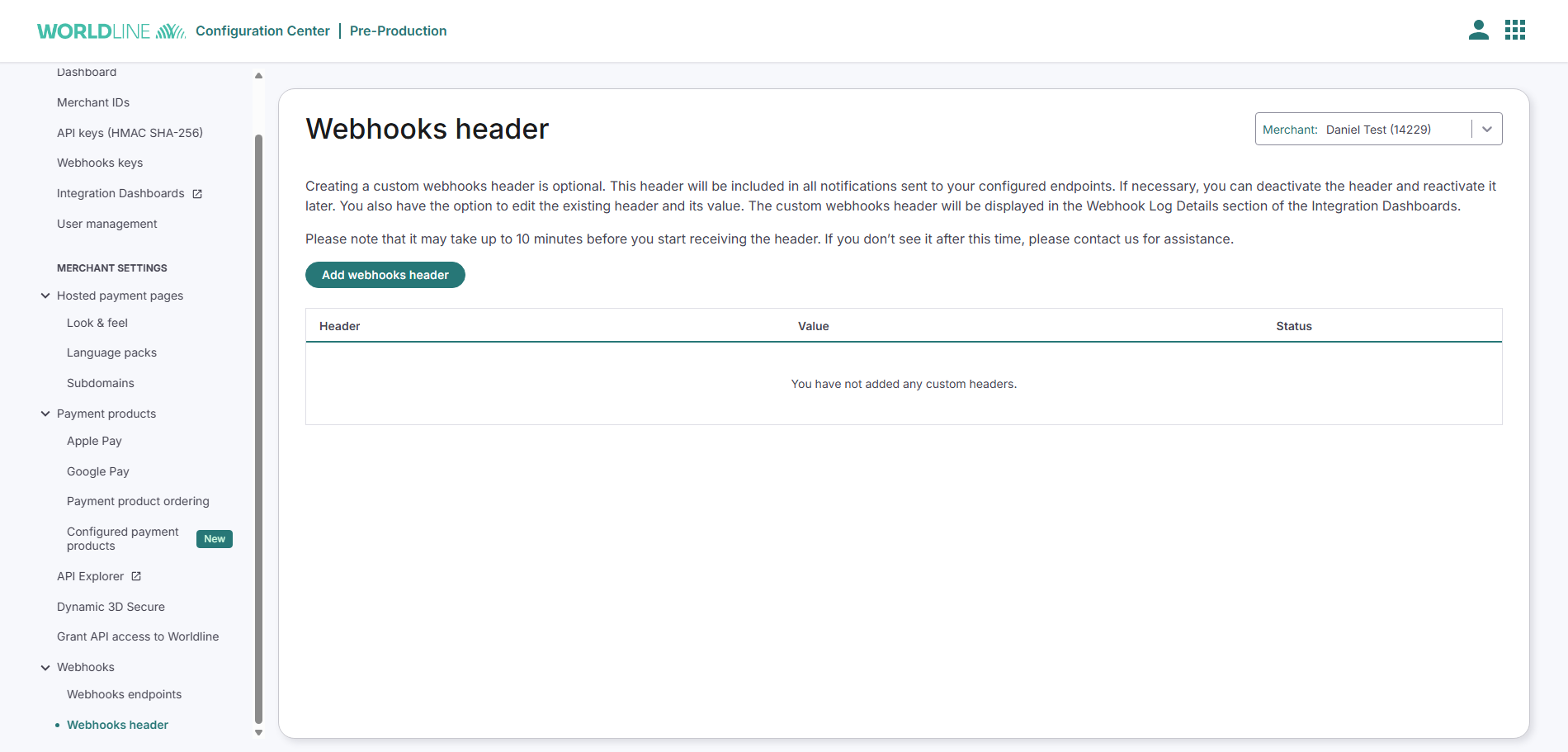
- Create a custom header by clicking on "Add webhooks header" button.
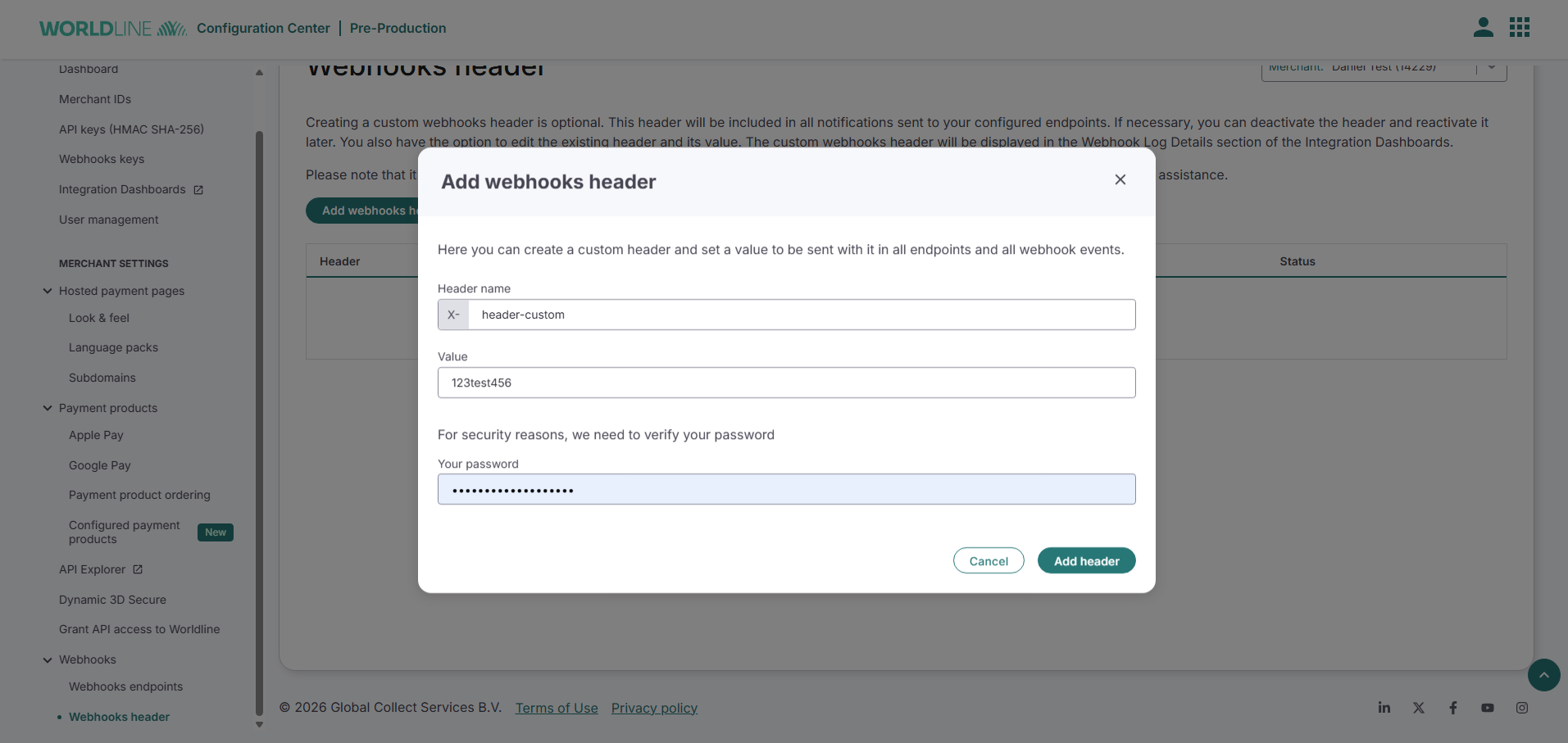
- Define header name and value and insert your password to confirm the change.
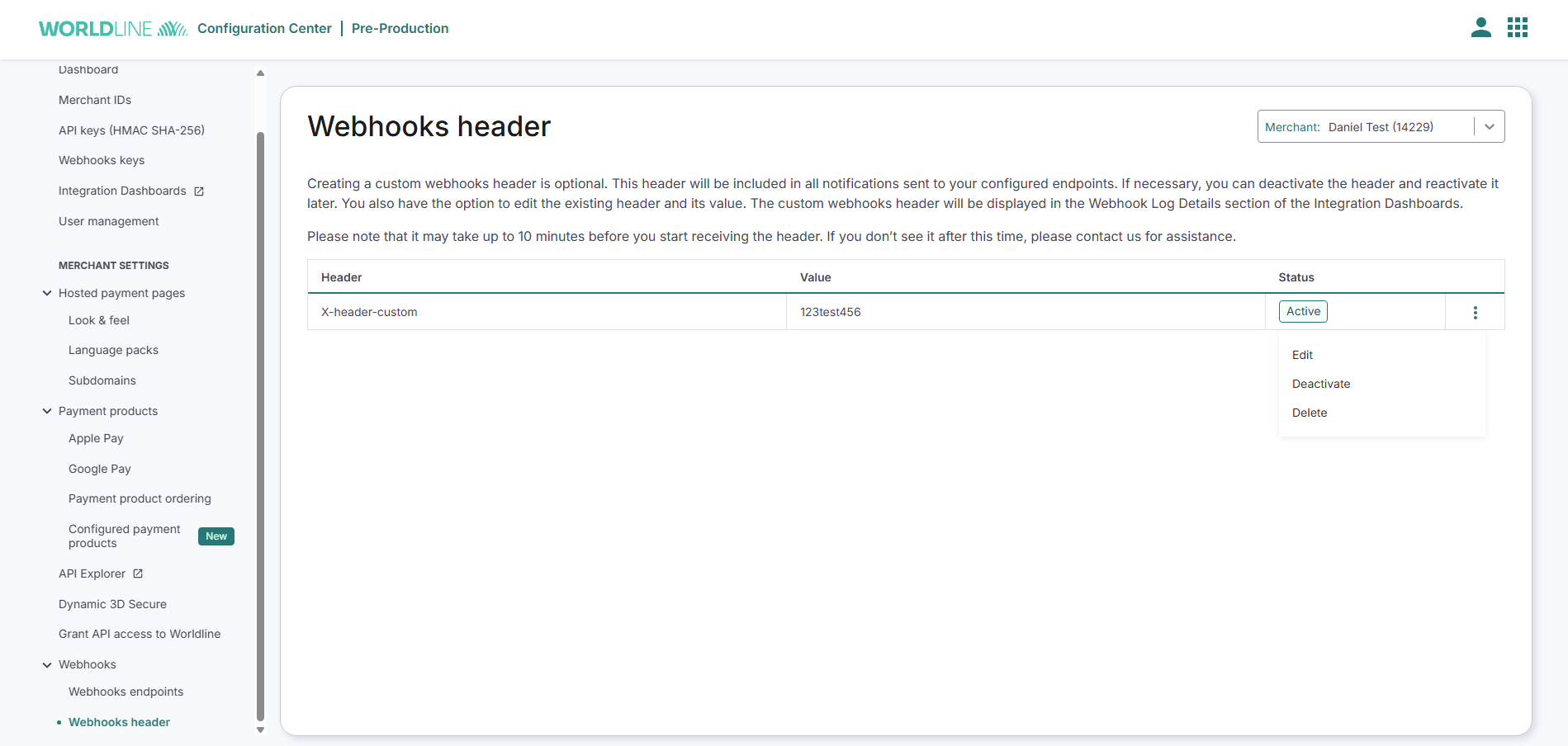
- Check the header status and make more changes if needed.
Key implementation details
- Headers are active immediately after configuration—no additional activation step is required.
- Allow up to 10 minutes for headers to propagate across the system.
- View configured headers in the Webhook Log Details section of Integration Dashboards.
- Headers apply to all merchant IDs in your account.
- Caching applies to headers similar to webhook endpoints.
- Headers cannot override X-GCS-* prefixed headers.
FAQ
- When do headers become active after creation?
Headers become active immediately upon creation. No manual activation step is required. Allow up to 10 minutes for full propagation across all systems. - What are the header naming requirements and restrictions?
Headers must use the X- prefix (mandatory). Prefixes like X-GCS-* are blacklisted to avoid collisions with system headers. Maximum length is 256 characters. Allowed characters include letters, numbers, underscore, colon, semicolon, period, comma, and common punctuation marks. - What is the advantage of custom headers compared to the existing webhooks key ID?
Custom headers provide simple, application-level authentication without complexity. They replace IP whitelist functionality that was lost during cloud migration, offering merchants an easier authentication option for cloud-native environments. - Can I customize the webhook user agent?
Yes. The user agent can be customized to something like X-custom-header for easier identification in your logs and monitoring systems. - Can I add different headers to different webhook endpoints?
No. Headers apply to all webhook requests from your account. Event types are distinguished from the webhook payload itself, so different headers per endpoint are unnecessary. - Why should I avoid executable content like .exe in header values?
Validation checks prevent executable content to protect against injection attacks and ensure the security of your webhook stream.
Integration of DNS-based whitelisting
Overview
DNS-based whitelisting allows you to whitelist Worldline's DNS domain instead of maintaining a static IP list. Your firewall automatically resolves the domain to current IP addresses, so webhooks continue flowing without requiring manual updates when IPs change.
DNS domain: webhooks-incoming-ipadresses.connect.worldline-solutions.com
How it works
- We provide you with the DNS domain.
- You configure firewall/web server to allow inbound from our domain.
- Firewall continuously resolves domain to current IPs.
- Webhook traffic is accepted automatically.
- (Optional) You set up automation to refresh IP list every 10 minutes.
Benefits of DNS-based whitelisting
- No manual IP maintenance: DNS automatically resolves to current IP addresses without requiring configuration changes.
- Supports dynamic infrastructure: IP addresses update without interrupting webhook delivery.
- Continuous webhook delivery: Webhooks are not interrupted when IP addresses change.
- Network-level validation: Only traffic from the whitelisted Worldline domain is accepted.
What you need to know
- DNS-based whitelisting requires firewall/network-level configuration (admin access).
- Different web servers require different configuration approaches.
- You have to configure it on your end.
- DNS resolution must be working properly for whitelisting to function.
Select your web server for implementation guide
| Web server | Configuration type |
|---|---|
| Apache | Native module support (mod_authz_host) |
| Nginx | Bash script + DNS resolution |
| Windows Server (IIS) | PowerShell + URL Rewrite or IP Restrictions |
Apache server implementation
Apache has native support for DNS-based whitelisting via the mod_authz_host module.
- Enable the mod_authz_host module LoadModule authz_host_module modules/mod_authz_host.so
- Configure the whitelist in your Apache configuration.Require forward-dns webhooks-incoming-ipadresses.connect.worldline-solutions.com
- Restart Apache sudo service apache2 restart
Result: Requests from the DNS domain are now whitelisted automatically.
Nginx implementation
Nginx does not support DNS-based whitelisting natively. You need a periodic script to resolve the DNS and update allowed IPs.
- Install dnsutils.
#!/bin/bash env

DDNS[0]="webhooks-incoming-ipadresses.connect.worldline-solutions.com"

if [ ! -f /etc/nginx/conf.d/dynamicips ];
then
        for DNS in "${DDNS[@]}"
        do
            echo "allow $(dig x +short $DNS);" >> /etc/nginx/conf.d/dynamicips
        done
fi

OLD=($(cat /etc/nginx/conf.d/dynamicips))
let "DNSCOUNT=${#DDNS[@]} - 1"
for i in $(eval echo "{0..$DNSCOUNT}")
    do
        NEW[$i]="allow $(dig x +short ${DDNS[$i]});"
    done

OLDAGG=${OLD[@]};
NEWAGG=${NEW[@]};
if [ "$OLDAGG" != "$NEWAGG" ]; then
    rm /etc/nginx/conf.d/dynamicips
    for i in $(eval echo "{0..$DNSCOUNT}")
        do
            echo "${NEW[$i]}" >> /etc/nginx/conf.d/dynamicips
        done
    service nginx reload
fi
- Make the script executable.
#!/bin/bash env
sudo chmod +x ~/scripts/nginx-dynamic-ip-whitelisting.sh
- Test the script.
#!/bin/bash env
sudo bash ~/scripts/nginx-dynamic-ip-whitelisting.sh
- Verify if the IPs were resolved.
#!/bin/bash env
cat /etc/nginx/conf.d/dynamicips
#!/bin/bash env
allow XX.XXX.XX.XX;
allow XXX.XX.XX.XX;
- Add to your Nginx virtual host.
#!/bin/bash env
sudo nano /etc/nginx/sites-available/
- Include the dynamic IPs in your webhook endpoint location.
#!/bin/bash env
location = / {
    include /etc/nginx/conf.d/dynamicips;
    include fastcgi_params;
    fastcgi_pass unix:/run/php/php7.0-fpm.sock;
    fastcgi_param SCRIPT_FILENAME $document_root$fastcgi_script_name;
    fastcgi_split_path_info ^(.+\.php)(.*)$;
}
- Test Nginx syntax.
#!/bin/bash env
sudo nginx -t
- Restart Nginx.
#!/bin/bash env
sudo nginx -t
- Schedule automatic updates every 10 minutes.
crontab -e
- Add the cron job.
*/10 * * * * /bin/bash ~/scripts/nginx-dynamic-ip-whitelisting.sh
Windows server (IIS) implementation
Windows Server requires URL Rewrite rules or PowerShell configuration for IP whitelisting. Prerequisites: Windows Server 2019+, IIS 10.0+, Administrator privileges
- Install URL Rewrite Module (if not installed). Download from Microsoft and install. This enables DNS hostname-based rules
- Open IIS Manager.
- Select your website and click URL Rewrite
- Create inbound rule:
- Name: Whitelist Worldline Webhooks
- Pattern: .*
- Conditions: Match request hostname
- Action: Allow/Deny based on condition
Alternative: PowerShell Configuration
 $ips = [System.Net.Dns]::GetHostAddresses("webhooks-incoming-ipadresses.connect.worldline-solutions.com") | Select-Object -ExpandProperty IPAddressToString

foreach ($ip in $ips) {
    Add-WebConfigurationLocation -PSPath "IIS:\Sites\YourSiteName\your-webhook-endpoint" -Filter "system.webServer/security/ipSecurity" -Value @{ipAddress=$ip; allowed=$true}
}
- Schedule automatic updates (optional)