

- Overview
- Countries & currencies
- Integration
- Process flows
- Testing
- Additional information
- Consumer experience
- Reporting
- FAQ
Testing
Wero can be tested through the Test Scenario Selector. The Test Scenario Selector is a dynamic interface where you can select the payment product specific test cases to be simulated as well as specify the relevant feedback timeframe. You need to be onboarded for Wero in pre-production in order to use it. The Test Scenario Selector replaces the redirection to the third party provider's test environment (i.e. the redirection URL) for completion of the payment, as outlined in the Integration section.
You can access the Test Scenario Selector by going to the Configuration Center in the pre-production environment and clicking on the API Explorer. Then, you can either use Create hosted checkout or Create payment API call.
Testing Wero
On the Test Scenario Selector page, a number of applicable test scenarios are displayed:
- Test case result (the outcome of the test case).
- Payment flow feedback (the timeframe within which feedback needs to be received).
- Refund flow feedback.
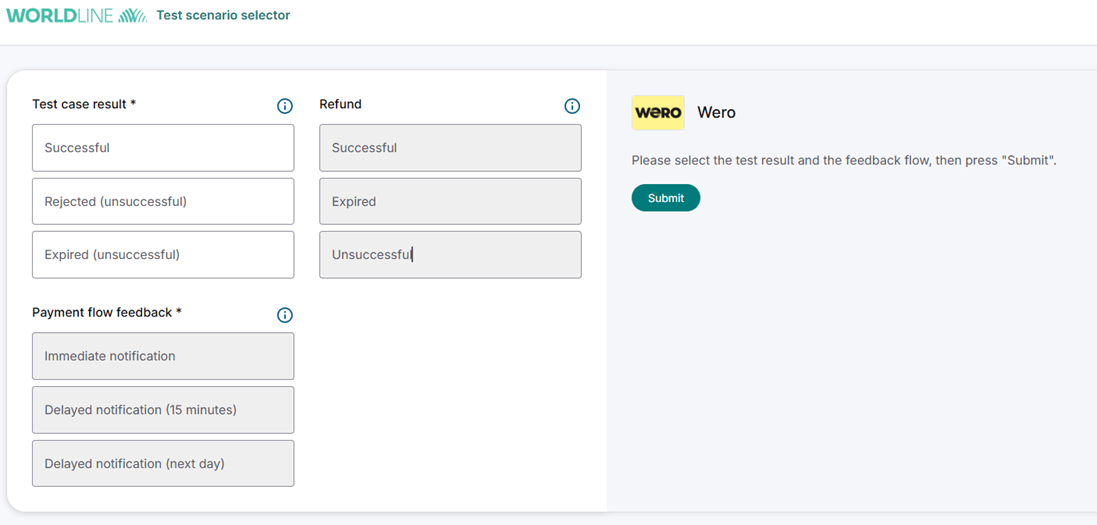
Testing payment flow
When testing Wero payments in the pre-production environment, there are a few feedback types available:
- Immediate notification: The test case response is received immediately.
- Delayed notification (15 minutes): The test case response is received within 15 minutes.
- Delayed notification (Next day): The test case response is received within a timeframe of 1 hour to 24 hours.
Only one test scenario can be simulated at a time: select one test case result and one of the applicable payment flow feedback options and click “Submit” button:
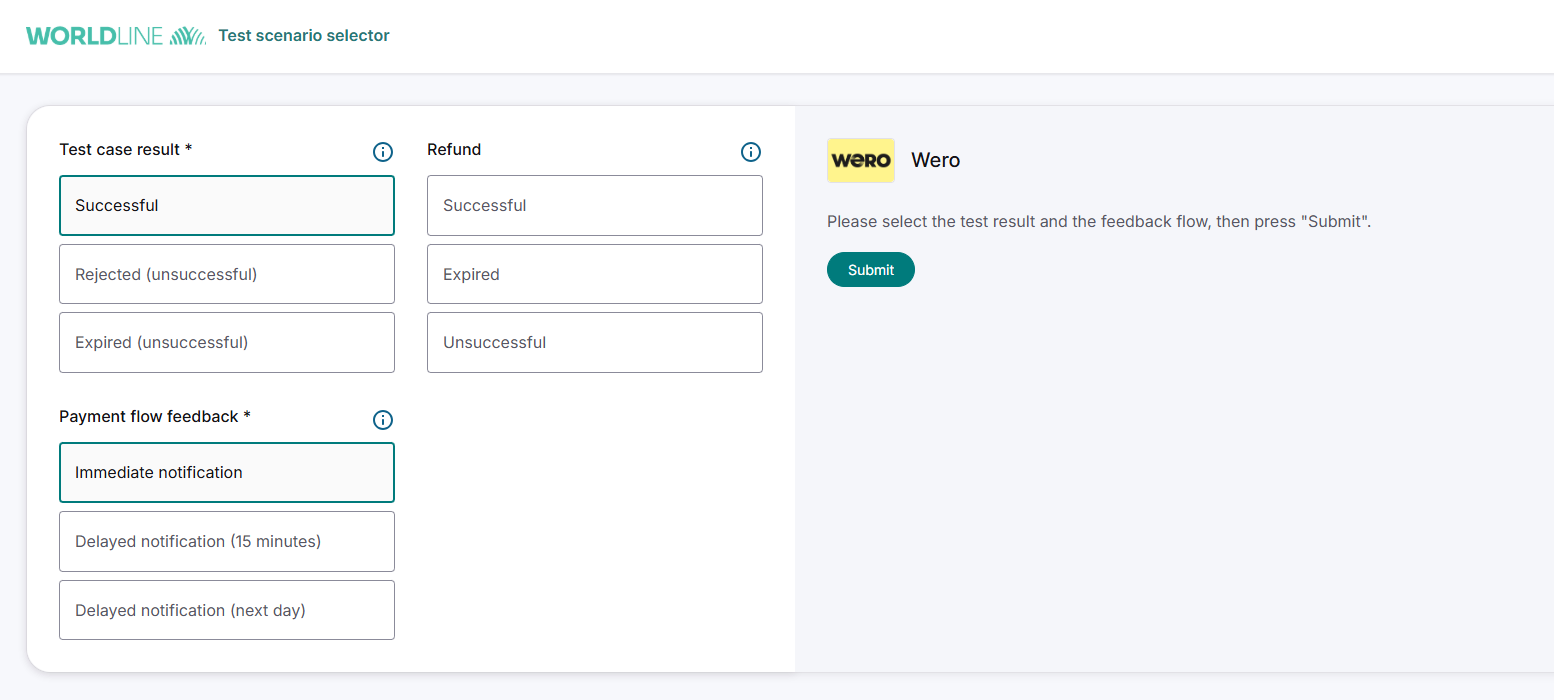
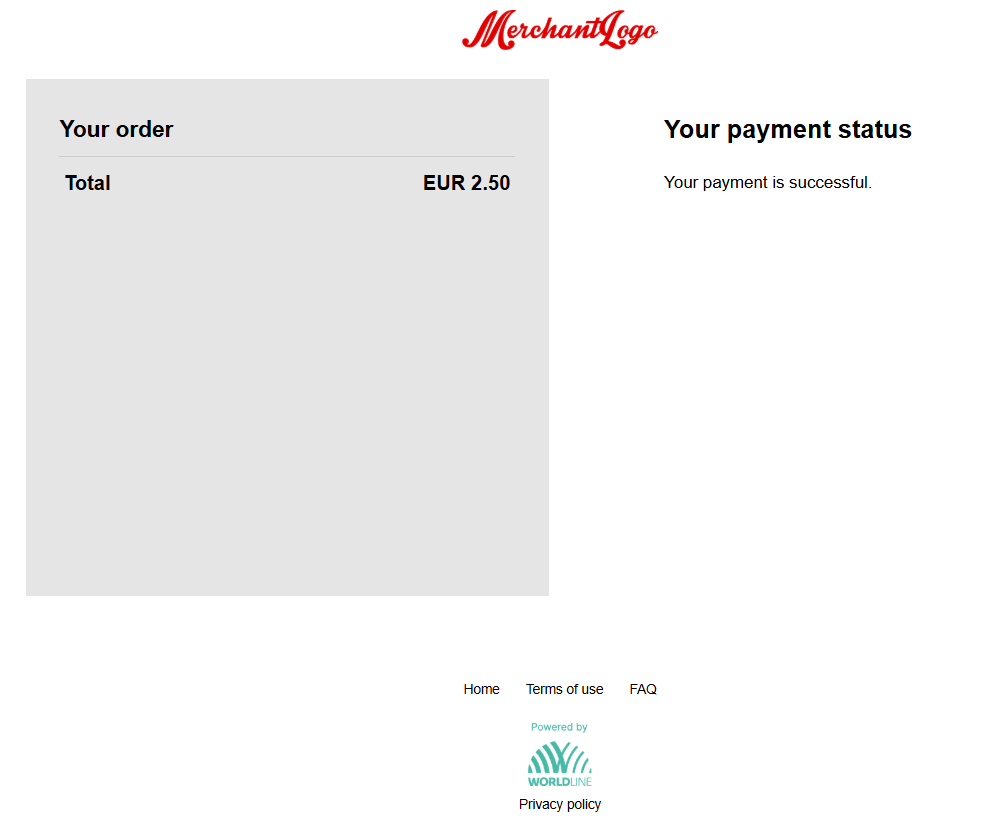
The transaction result is returned to you in the response of the API. In case you use the MyCheckout hosted payment pages, the transaction result is displayed.
Test scenarios
| Scenario | Description | End status | Payment flow feedback |
|---|---|---|---|
| Successful | Simulates a transaction successfully completed at the consumer bank. | SENT (900)and will be updated to PAID (1000) within an hour. PAID is a final status. |
|
| Rejected(unsuccessful) | Simulates a transaction cancelled by the 3rd party. | REJECTED (120) |
|
| Expired(unsuccessful) | Simulates a transaction that has timed out | TIME OUT (140) | Delayed Notification (Next day) |
Testing refunds
Only transactions that have a PAID status (1000) can be refunded. First, select the successful test case result along with one of the applicable payment flow feedback options(both simulate a successful payment transaction), as well as one of the refund scenarios, and click "Submit" button:
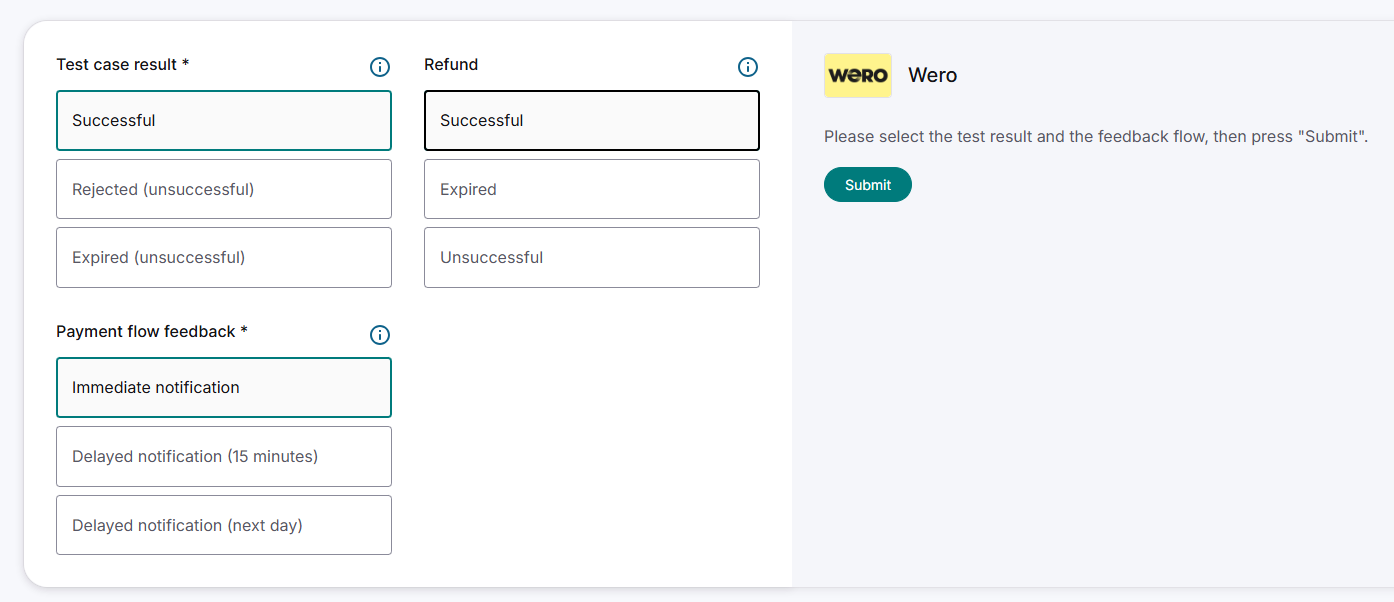
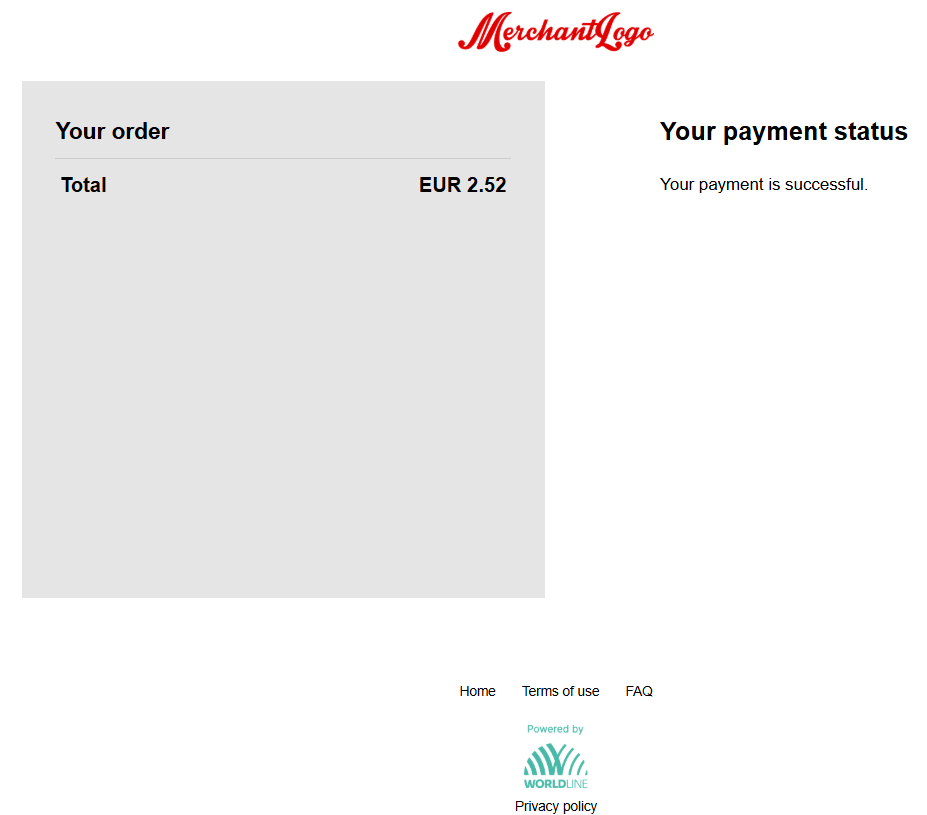
The transaction result is returned to you in the response of the API. In case you use the MyCheckout hosted payment pages, the transaction result is displayed:
The refund scenario selected will be stored and applied once the refund request is submitted.
Test scenarios
| Scenario | Description | End status |
|---|---|---|
| Successful | Simulates a successful refund | SENT (900), and will be updated to REFUNDED (1800) within an hour. REFUNDED is a final status. |
| Unsuccessful | Simulates a rejected refund request. | REJECTED (100) |
| Expired | Simulates a transaction that has been timed out. | REJECTED (100) |
Submit the refund as per the refund guidelines listed under the product Integration section. The appropriate response will be returned for the selected refund scenario.
Next Additional information