

- Overview
- Countries & currencies
- Integration
- Process flows
- Testing
- Additional information
- Consumer experience
- Reporting
- FAQ
Testing
You have two flexible options for testing Trustly:
- Global Collect's Test Scenario Selector (Recommended) — This is your default testing environment. It lets you quickly simulate different payment scenarios without additional setup, making it ideal for getting started right away.
- Trustly's Test Environment — If you prefer to test directly with Trustly's environment, simply contact your implementation manager. They'll help you switch the configuration so you can test against Trustly's systems.
Test Scenario Selector
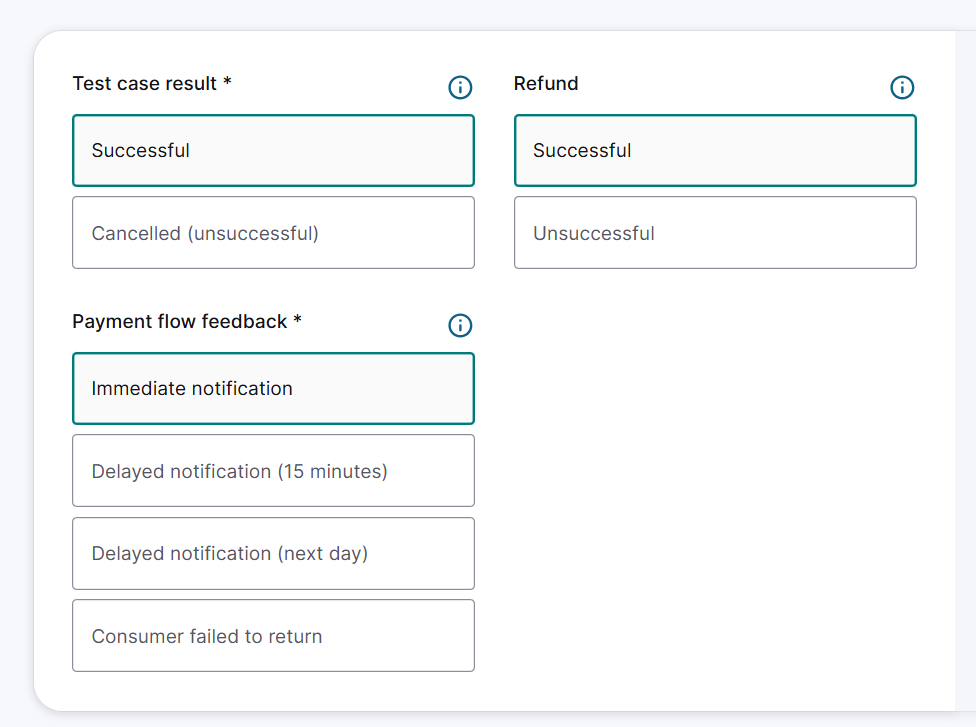
The Test Scenario Selector allows you to select payment product-specific test cases and specify the feedback timeframe. You must be onboarded for Trustly (Payment Product ID: 806) in pre-production to use it.
The Test Scenario Selector replaces the redirection to the third-party provider's test environment for payment completion, as described in the Trustly Integration Section.
To access the Test Scenario Selector, go to the Configuration Center in the pre-production environment and click the API Explorer. You can then select either Create Hosted Checkout or Create Payment to test your integration.
Payment flow feedback types for Trustly
When testing Trustly in the pre-production environment, you can select from the following feedback types:
- Immediate notification: The test case response is returned immediately.
- Delayed notification (15 minutes): The test case response is returned within 15 minutes.
- Delayed notification (1–24 hours): The test case response is returned within 1 to 24 hours.
- Consumer failed to return: The consumer exits the session before being redirected back to your site.
How to test Trustly
On the Test Scenario Selector page, a number of applicable test scenarios are displayed:
- Test case result (the outcome of the test case).
- Payment flow feedback (the timeframe within which feedback needs to be received).
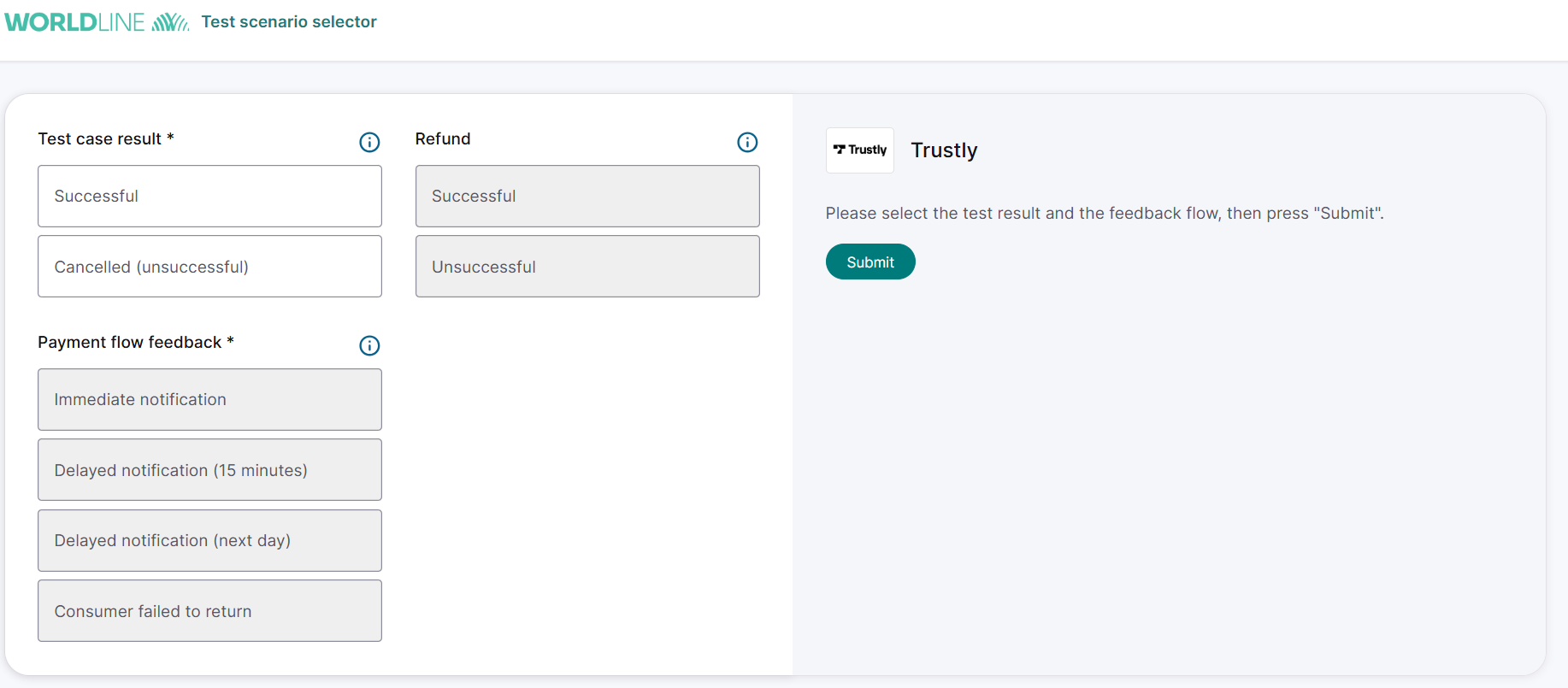
Only one test scenario can be simulated at a time.
- Select one Test case result and one of the applicable Payment flow feedback options. The refund outcome can also be selected at this step if you would like to refund the transaction at a later stage.
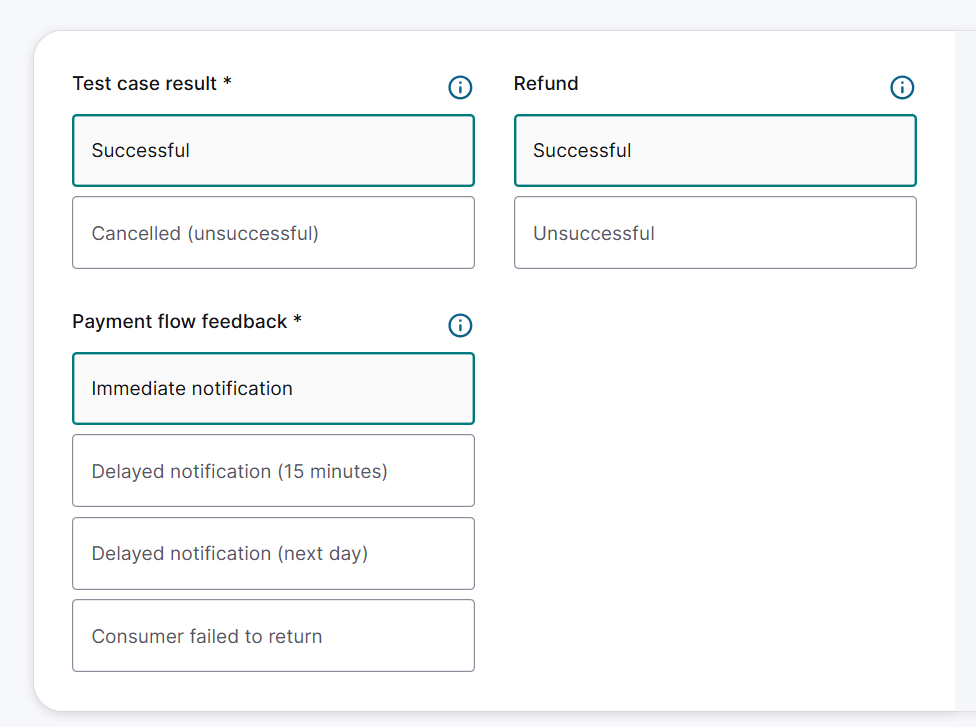
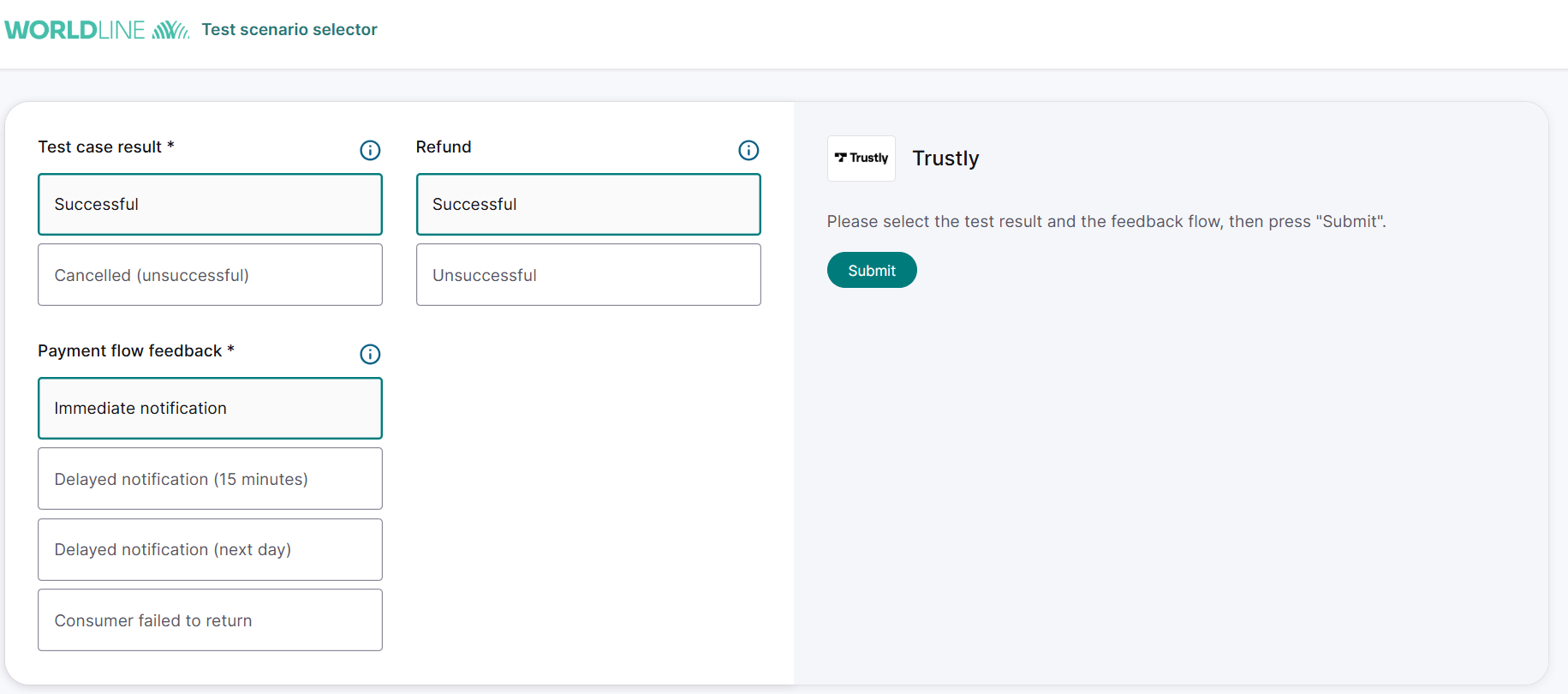
- Click on the Submit button.
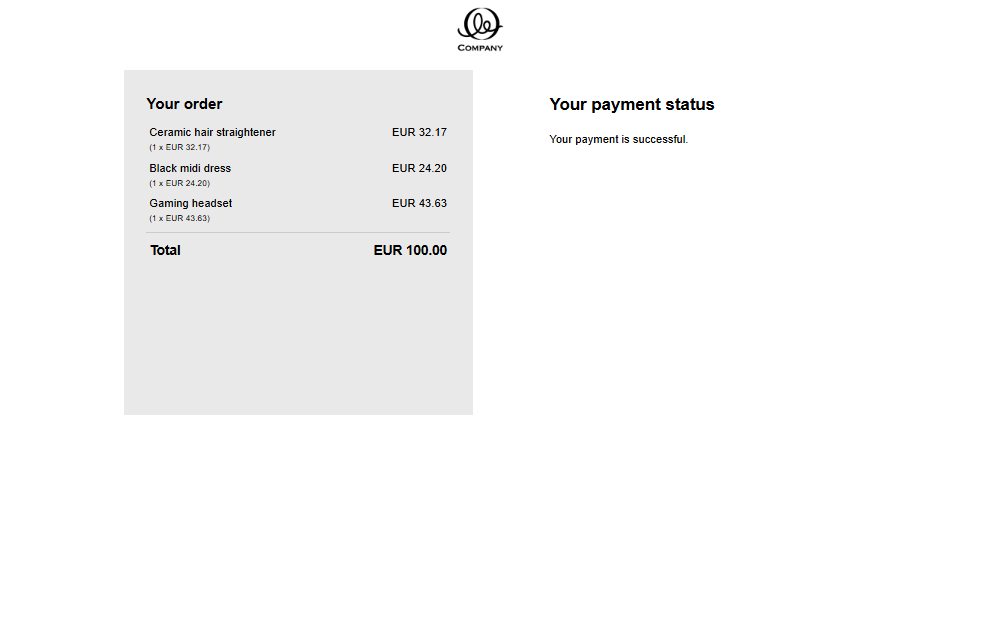
- The transaction result is displayed.
Test scenarios
| Scenario | Description | End status | Payment flow feedback |
|---|---|---|---|
| Successful | Simulates a transaction successfully completed at the consumer bank | CAPTURED (800/900) or PAID (1000) |
|
| Cancelled (unsuccessful) | Simulates a transaction cancelled by the 3rd party | REJECTED (125) | Immediate notification |
Testing refunds
- You can select refund scenarios on the Test Scenario along with the test case result and payment flow feedback.
- Only transactions in PAID status (1000) can be refunded, as described in Refunds and Cancellations.
Refund scenarios
You can select refund scenarios only when you choose a Successful test case result and a payment flow feedback type.
| Scenario | Description | End status |
|---|---|---|
| Successful | Simulates a successfully completed transaction refund | 1800 |
| Unsuccessful | Simulates a transaction refund that was rejected |
Trustly test environment
You can test Trustly through their test environment. To test different scenarios, use the API Explorer available through your Configuration Center account. Depending on your integration option, you can use different API calls for testing.
For MyCheckout hosted payment pages, send POST /hostedcheckouts API request and validate response:
- HTTP status code=201
- partialRedirectUrl contains a link
{
  "order": {
    "references": {
      "merchantReference": "Example Merchant Reference"
    },
    "amountOfMoney": {
      "amount": 8500,
      "currencyCode": "EUR"
    },
    "customer": {
      "contactDetails": {
        "emailAddress": "connect@worldline.com"
      },
      "merchantCustomerId": "11011011",
      "billingAddress": {
        "countryCode": "NL"
      }
    }
  },
  "hostedCheckoutSpecificInput": {
    "variant": "100",
    "locale": "en_GB"
  }
}
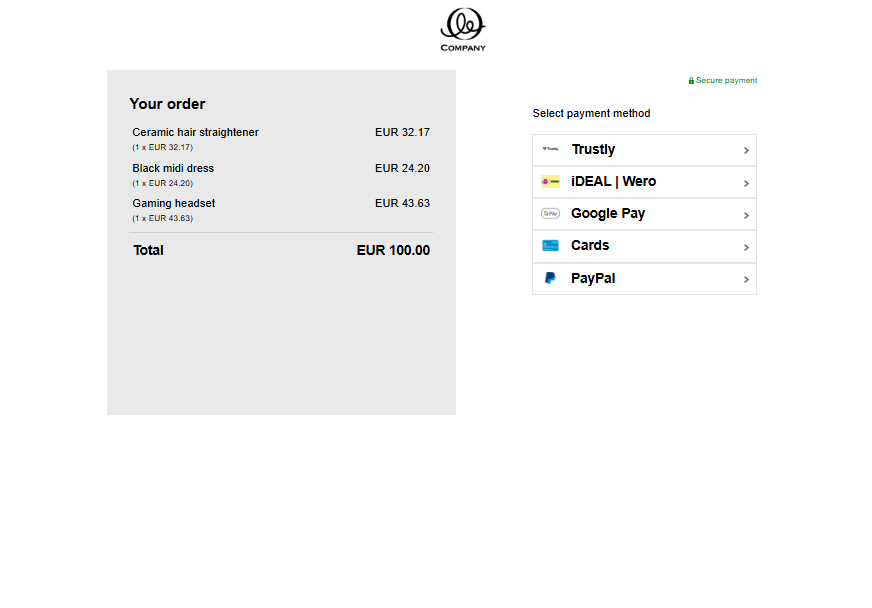
- Click the link in the response to access the hosted page displaying your selected variant. Then select Trustly from the payment product list.
- For your own payment pages testing, send Create payment>POST /v1/{merchantId}/payments API request and validate response:
- HTTP status code=201
- merchantAction.redirectURL contains a link to the provider's page
- payment.statusOutput.statusCode=20
{
  "order": {
    "references": {
      "merchantReference": "Example Merchant Reference"
    },
    "amountOfMoney": {
      "currencyCode": "EUR",
      "amount": 8500
    },
    "customer": {
      "personalInformation": {
        "name": {
          "firstName": "John",
          "surname": "Smith"
        }
      },
      "contactDetails": {
        "emailAddress": "connect@worldline.com"
      },
      "merchantCustomerId": "11011011",
      "billingAddress": {
        "countryCode": "NL"
      }
    }
  },
  "redirectPaymentMethodSpecificInput": {
    "redirectionData": {
      "returnUrl": "https://example.org/return"
    },
    "paymentProductId": 806
  }
}
{
  "creationOutput": {
    "additionalReference": "Example Merchant Ref",
    "externalReference": "Example Merchant Reference"
  },
  "merchantAction": {
    "actionType": "REDIRECT",
    "redirectData": {
      "RETURNMAC": "0b478cfe34dd4f6a914165b9af7c80b7",
      "redirectURL": "https://orb-ams1.gc.preprod.gi.worldline-solutions.com/orb/orb?ACTION=DO_START&REF=000008800410000075260000100001&MAC=3a1559f6e956410bbfdea491e824e359"
    },
    "showData": []
  },
  "payment": {
    "id": "000008800410000075260000100001",
    "paymentOutput": {
      "amountOfMoney": {
        "amount": 8500,
        "currencyCode": "EUR"
      },
      "references": {
        "merchantReference": "Example Merchant Reference",
        "paymentReference": "T88400063ZXA"
      },
      "paymentMethod": "redirect",
      "redirectPaymentMethodSpecificOutput": {
        "paymentProductId": 806
      }
    },
    "status": "REDIRECTED",
    "statusOutput": {
      "isCancellable": true,
      "isRetriable": false,
      "statusCategory": "PENDING_PAYMENT",
      "statusCode": 20,
      "statusCodeChangeDateTime": "20260428170937",
      "isAuthorized": false,
      "isRefundable": false
    }
  }
}
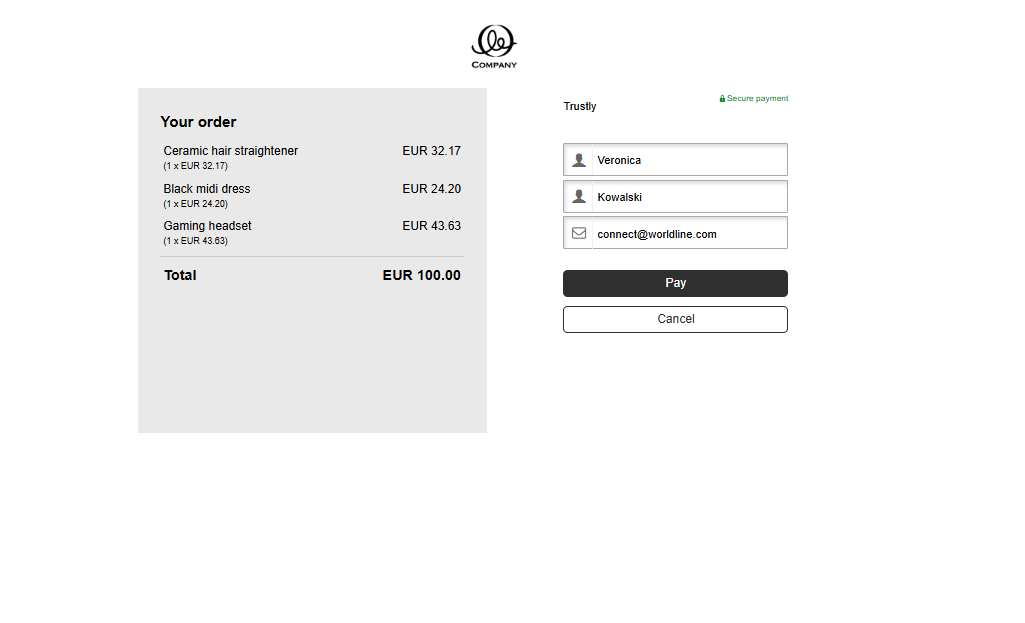
- Fill the required fields First name and Surname, and click Pay.
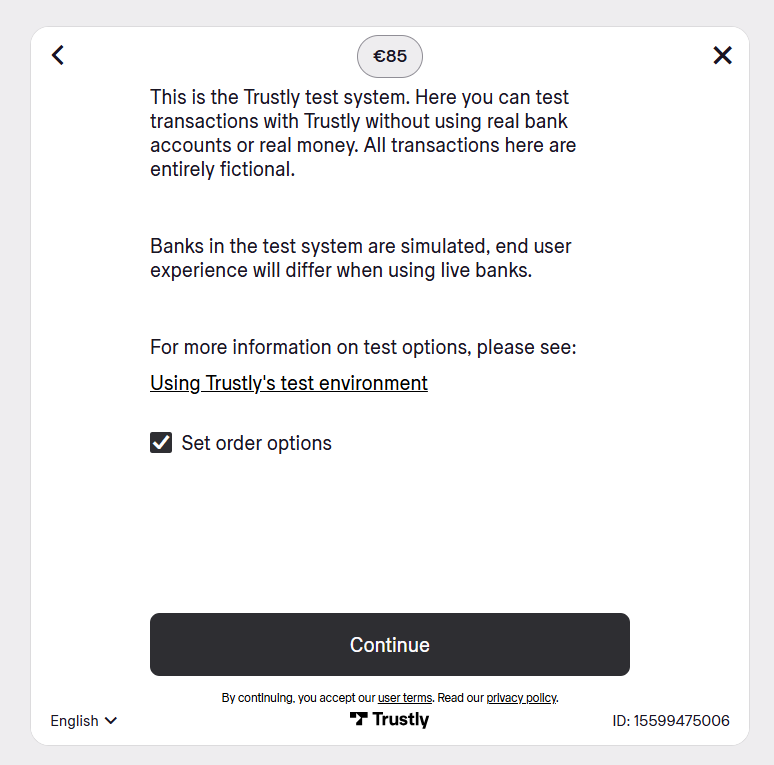
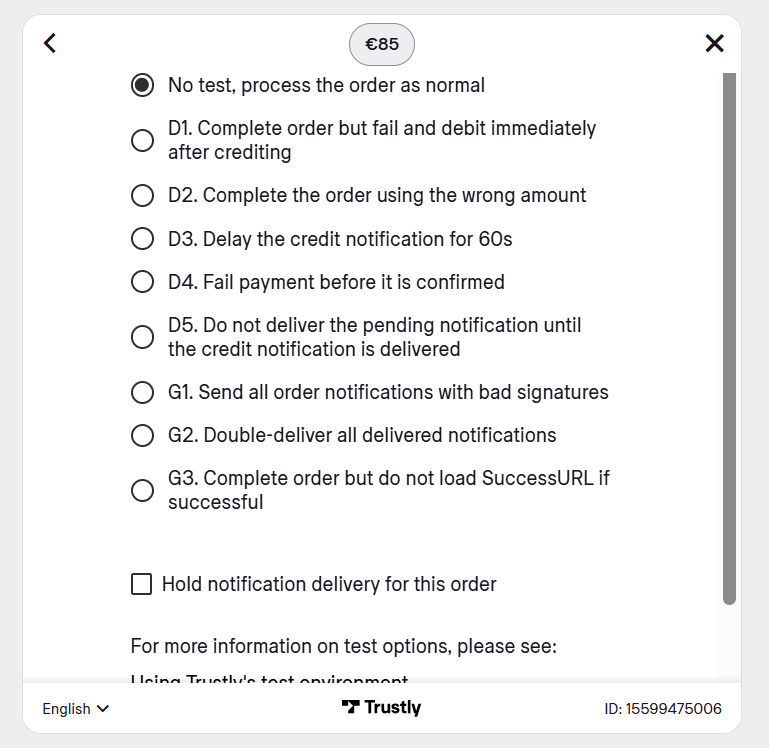
- You will be redirected to the Trustly page. To proceed with your test payment, select Set order options and click Continue.
- Select the test cases from the overview on this page.
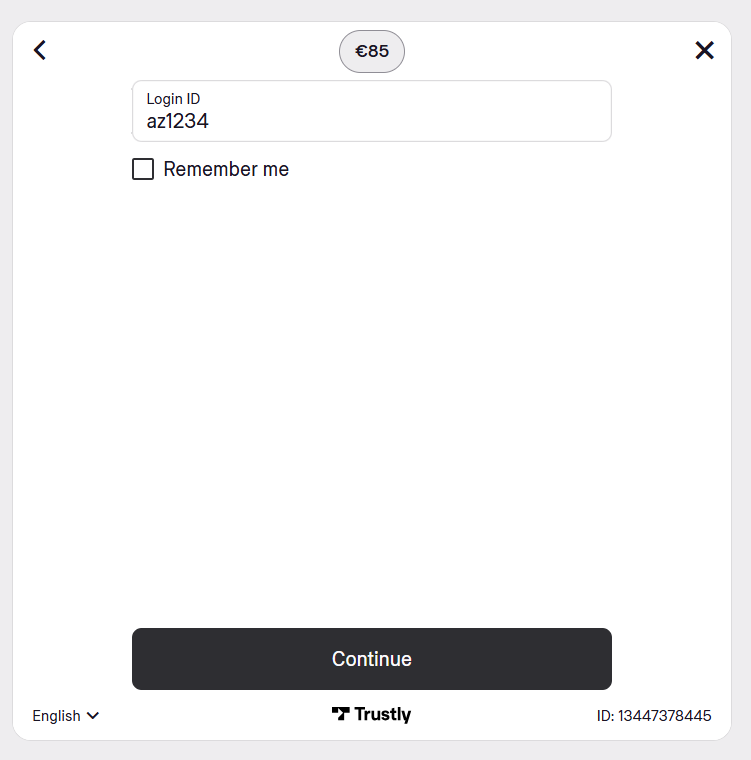
- After you select a bank, the checkout requests a login or personal ID.
- For all countries except Sweden, enter a value with 6 or more characters using only lowercase a–z and digits 0–9. Do not use spaces, hyphens, underscores, periods, commas, or special characters. When your input meets these requirements, the Continue button is enabled.
- For Sweden, enter a Swedish personal identity number (personnummer). You can use a synthetic number as long as it follows the valid format. The format is YYMMDDNNNN (10 digits) or YYYYMMDDNNNN (12 digits), with the last digit as a checksum. Example synthetic numbers: 1212121212 (10 digits) or 190112311113 (12 digits).
These rules apply only in the test environment. Do not use real consumer credentials.
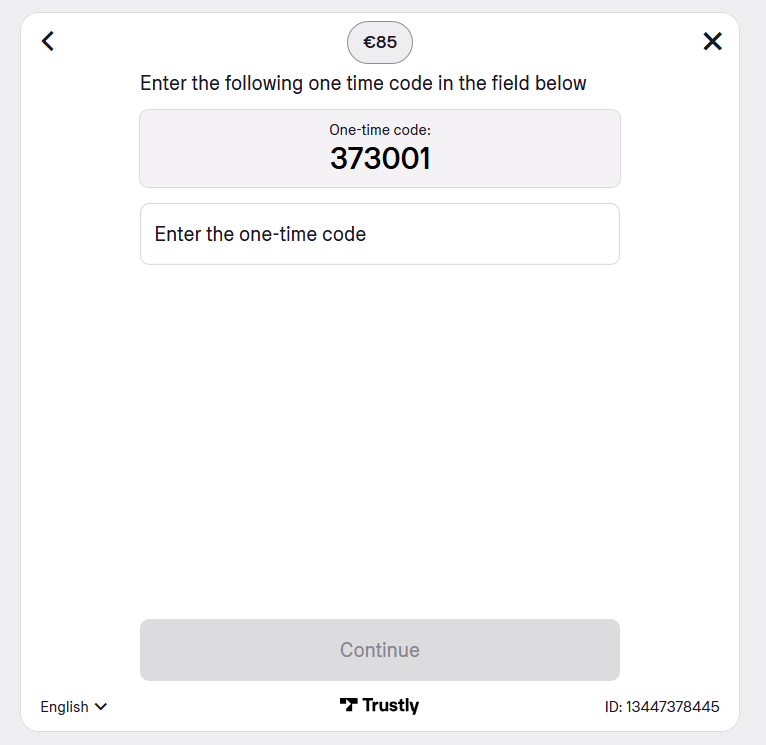
- Enter the one-time code displayed on the checkout and select Continue.
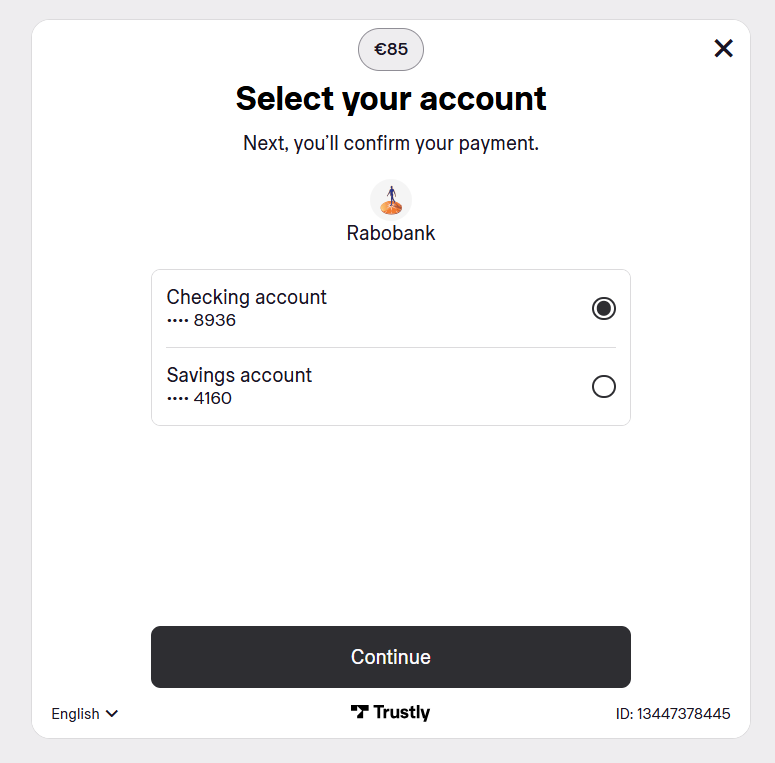
- Select a test bank account and select Continue.
- Enter the one-time code from the checkout and select Confirm Payment.
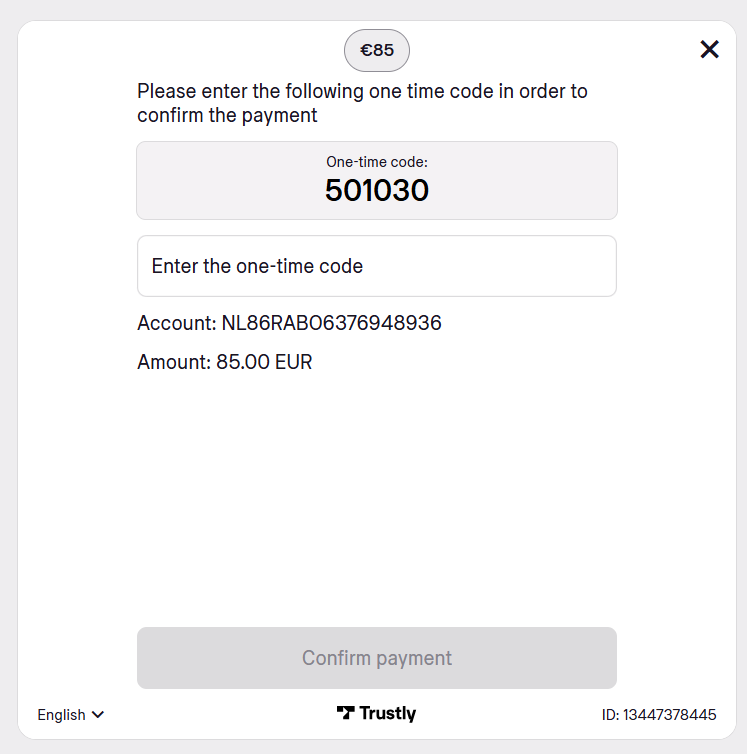
- The payment result displays in the browser. When the countdown completes or you select Return to Merchant, you are redirected to the website.
Testing refunds
To start a refund process, you should use the API call POST /v1/{merchantId}/payments/{paymentId}/refund. This action is only applicable if the payment status is PAID. If you wish to refund the full order amount, you can do so by sending a request using the same API call, but with an empty body. Refer to the integration guide on specifics around Trustly refunds: https://docs.connect.worldline-solutions.com/payment-product/trustly/integration/globalcollect#refund
Next Additional information